First-run setup
The first time Costas starts it opens Set up Costas: six steps listed down the left. Every step can be skipped with Next and revisited later from the menu (☰ › Station setup), so you can start receiving before everything is connected.
Before you start, have the radio on, connected to the PC by USB, and tuned to an FT8 frequency such as 14.074 MHz (USB or USB-D mode).
1. Station
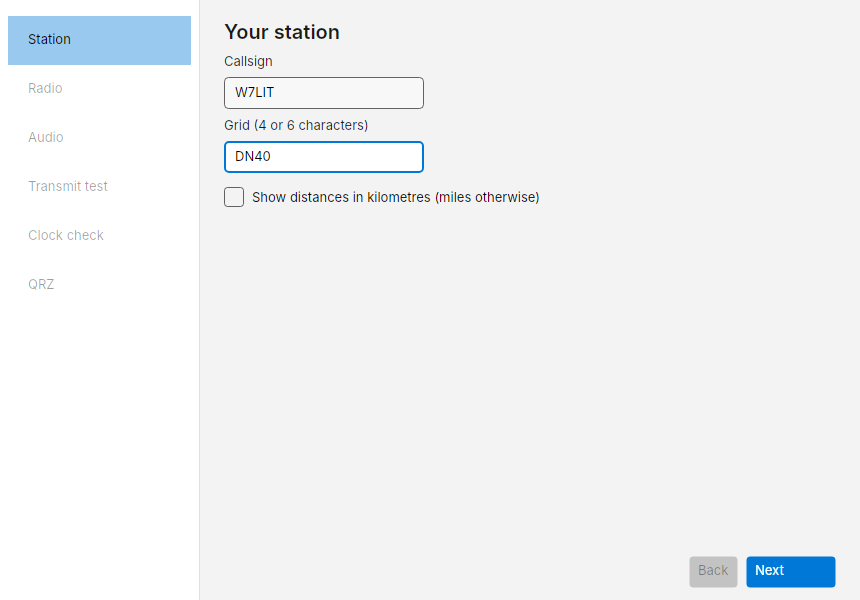
- Callsign: your call, as you send it on the air.
- Grid: your Maidenhead locator, 4 or 6 characters (for example
DN40orDN40dd). It is sent in your messages and used to work out distance and bearing and to centre the maps. - Show distances in kilometres: miles otherwise.
The step passes when both the callsign and grid are valid.
2. Radio (CAT and PTT)
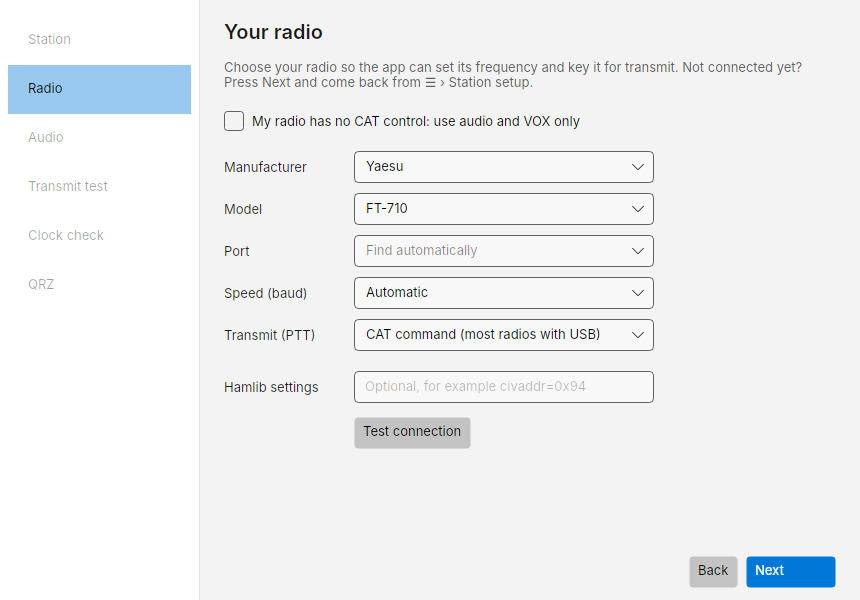
Costas controls the radio through Hamlib, the same library WSJT-X uses.
| Field | What to choose |
|---|---|
| Manufacturer and Model | Your radio, from Hamlib's list (for example Icom › IC-7300) |
| Port | The radio's COM port. Leave it on Find automatically and Costas tries every port at once |
| Speed (baud) | Automatic tries the common rates. Or pick the rate set in the radio's menu |
| Transmit (PTT) | How the radio is keyed, below |
| PTT port | Only for RTS or DTR keying: the serial port whose line keys the radio, if it is not the CAT port |
| Hamlib settings | Optional. Extra Hamlib settings as name=value pairs separated by commas, below |
If Hamlib Launcher or another program already runs rigctld, choose Hamlib › NET rigctl.
Enter its listening address in Server (host:port), for example 127.0.0.1:4532 for a server
on this PC. Keep the launcher running: it owns the radio's COM port and sets the radio model
and baud rate. Costas connects over TCP, so it does not check or scan COM ports or baud rates.
If flrig controls the radio, choose FLRig as the manufacturer, then enter flrig's XML-RPC address in
Flrig server (host:port). Costas fills in flrig's default, 127.0.0.1:12345; change it when flrig
runs on another PC or listens on another port (flrig's Config › Setup › Server page shows both).
Keep flrig running: it owns the radio's COM port. TRXManager and ACLog work the same way.
PTT choices:
- CAT command (most radios with USB): Costas tells the radio to transmit over the same cable. Use this for an IC-7300, IC-705, FT-991A, TS-590 and most modern radios.
- RTS line on a serial port or DTR line on a serial port: for interfaces that key with a serial control line. If the interface has its own COM port for keying (a separate PTT cable, or the second port some radios and interfaces add), choose it in PTT port. Otherwise leave Same as the CAT port.
- VOX (the radio keys on audio): the radio keys itself when audio arrives. Turn VOX on in the radio.
Hamlib settings is for radios that need more than the model and port. The common one is an Icom radio whose CI-V
address has been changed in its menu: enter civaddr= and the address, for example civaddr=0x94 (the IC-7300's
default is 0x94, so you only need this if yours is different). Separate several settings with commas, for example
civaddr=0x94,retry=3. Leave it empty if you don't need it.
Press Test connection. Costas checks each part in turn and shows a ✓ or ✗ line for each, with what to fix:
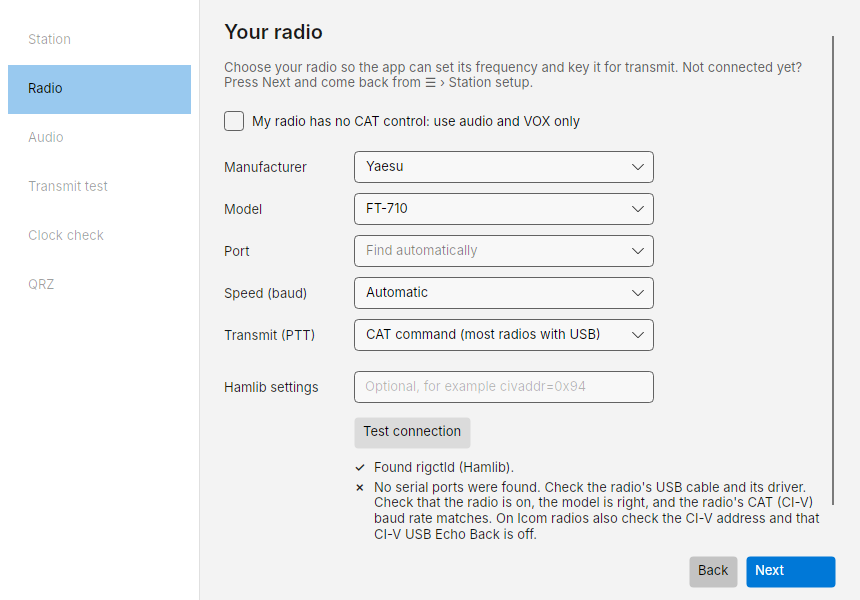
When it works you see the radio's dial frequency and mode read back, for example The radio answered: 14.074.000 MHz USB-D. Test connection never keys the radio. Keying is checked in step 4.
If you press Next with the port still on Find automatically, Costas runs the test for you first, because a radio with no port cannot be opened. If it still cannot find the radio, the results stay on screen; press Next again to carry on and set the radio up later.
Close other radio programs first
Only one program can use a COM port at a time. If WSJT-X, JTDX, Flrig, N1MM+ or the radio maker's own utility is running, close it before you test. When Costas searches every port it names any port another program is holding. The exception is a program you chose as the radio (flrig, or a rigctld server for NET rigctl): keep that one running.
No CAT cable? Tick My radio has no CAT control: use audio and VOX only. Costas then cannot read or set the frequency, and keys the radio by VOX. Set the radio to the right frequency yourself.
3. Audio
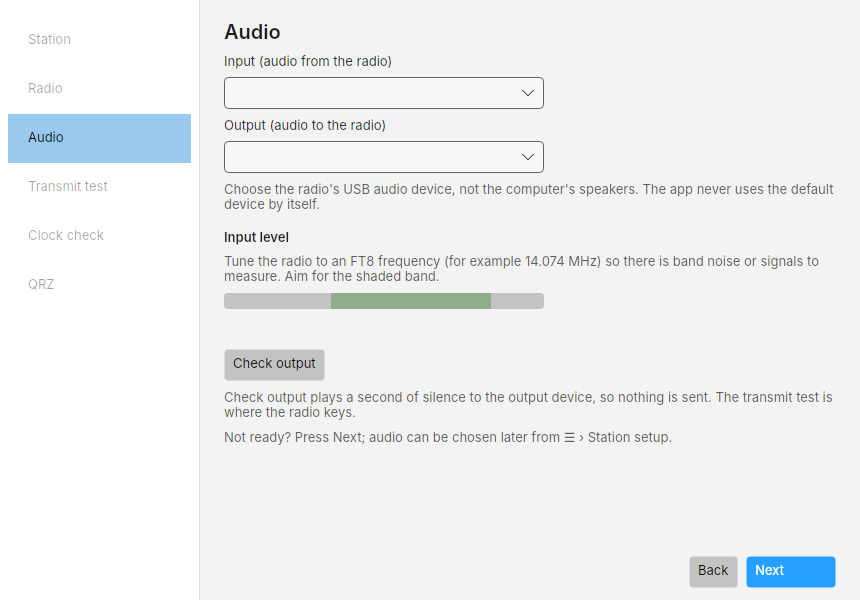
- Input (audio from the radio): the radio's USB audio device, usually named USB Audio CODEC or after the radio.
- Output (audio to the radio): the same device's output.
Choose the radio's device, not the computer's speakers or microphone. Costas never picks the Windows default device by itself.
Once you choose an input, the Input level meter moves. Aim for the shaded band (about -40 to -10 dBFS) with the radio on a busy FT8 frequency. The text beside it tells you what it sees:
| Message | What to do |
|---|---|
| No audio is arriving from this device | It may be unplugged, or another program has it in exclusive mode |
| The device sends only silence | Wrong device, or the radio's USB audio output level is at zero |
| Too quiet | Turn up the radio's USB audio output level, or the Windows recording level |
| Too loud / Clipping | Turn either of those down |
| Good level | Hold it there for 5 seconds and the input passes |
Check output plays one second of silence to the output device to prove it opens. Nothing goes on the air.
4. Transmit test
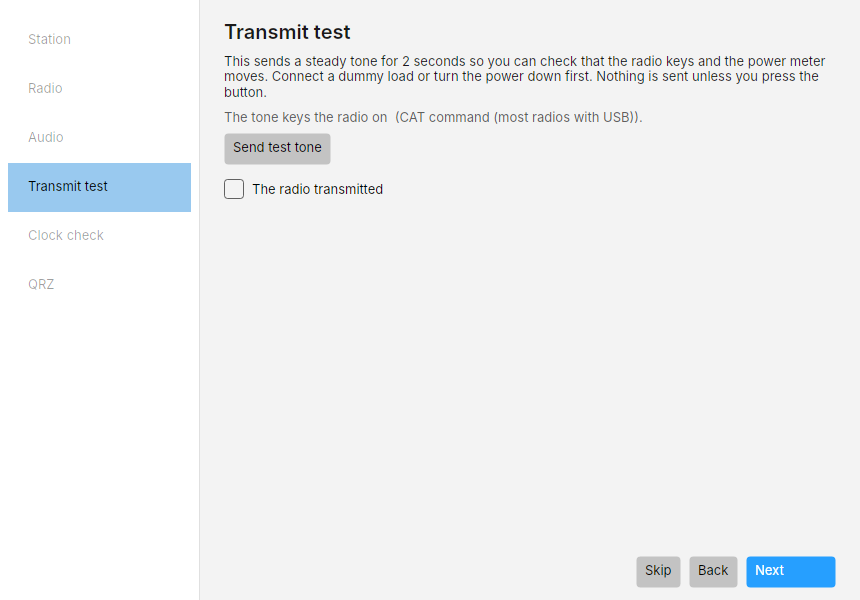
This step transmits
Connect a dummy load or turn the power right down, and make sure the frequency is clear.
Send test tone keys the radio and sends a steady 1500 Hz tone for 2 seconds. Watch the radio's TX light and power meter. Afterwards Costas shows whether the radio reported transmitting, and the ALC and SWR it read during the tone, with a warning if either is high. Tick The radio transmitted if it did. You can skip this step.
With Settings › Transmitting › Adjust automatically from the radio's ALC on (the default), Costas uses the ALC from this tone and every later transmission to set its own audio level, so you do not need to adjust it. With it off, if ALC moves a lot, lower Settings › Transmitting › Audio level or the radio's USB audio input level until it barely moves.
5. Clock check
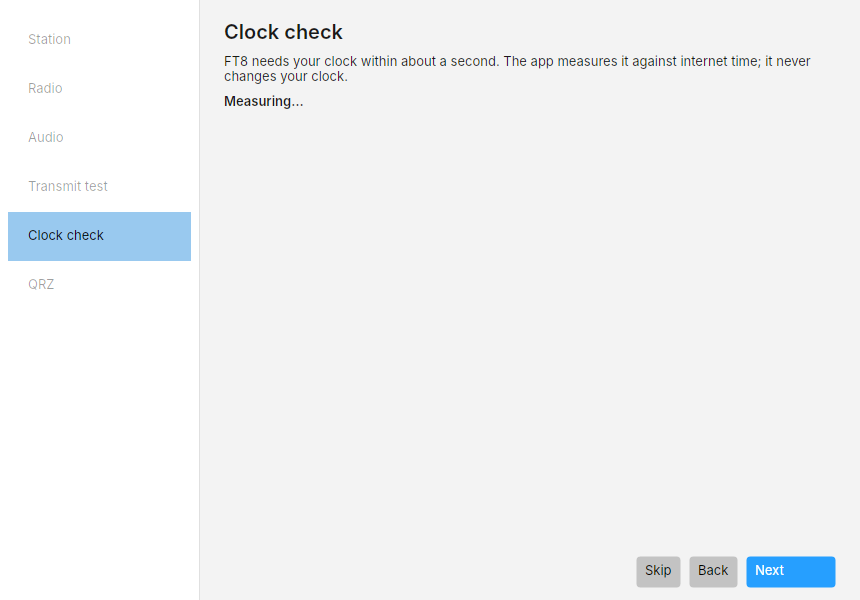
FT8 needs your PC clock within about a second of UTC. Costas measures the offset against internet time. It never changes your clock. Under 0.5 s is fine. If it is off by up to a minute, Costas corrects for it inside the app (Settings › Transmitting › Clock correction), so you can carry on, though syncing the clock is still better: open Windows Settings › Time & language › Date & time and press Sync now. Offline is fine too: once decodes arrive, Costas estimates the offset from them, but it only corrects from internet time.
Transmitting is blocked while the clock is off by more than 2 seconds (the limit can be changed in Settings › Transmitting › Clock limit).
6. QRZ and PSK Reporter
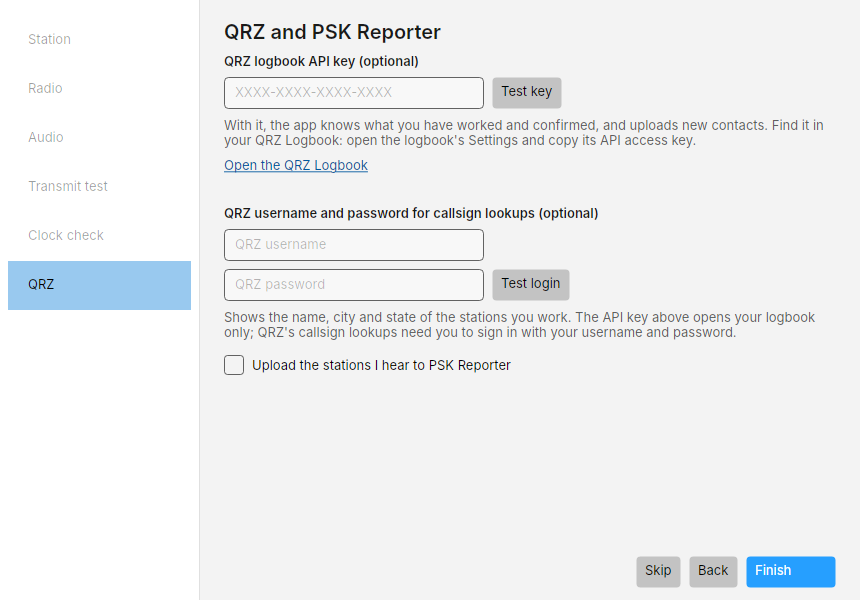
All optional. QRZ has two separate services with two separate sign-ins:
- QRZ logbook API key: lets Costas read what you have worked and confirmed (so it knows what you need), and upload new contacts. Find it on qrz.com: open your Logbook, then its Settings, and copy the API access key. Press Test key.
- QRZ username and password: used only for callsign lookups (name, city, state, grid of other stations). The API key cannot do lookups. Full details need a QRZ XML subscription; without one QRZ returns fewer fields. Press Test login.
- Upload the stations I hear to PSK Reporter: shares your reception reports with other operators.
Your key and password are stored in Windows Credential Manager, never in a settings file or log.
Press Finish. If a logbook key was given, the first sync with QRZ starts and shows a progress count.
After setup
The main window opens on the Operate screen. Within a slot or two you should see decodes. The bottom right shows Radio, Audio, QRZ and PSK Reporter indicators: green for working, with a word for each. Click any of them to open Diagnostics.