Introduction
Costas is an FT8 and FT4 program for Windows, with PSK31, PSK63 and RTTY on the same screen. For FT8 and FT4 it does the same job as WSJT-X, and uses the same decoder, but shows you stations instead of messages: one row per station, ranked by what you need for your log, whether the station is free to call, and whether it can hear you.
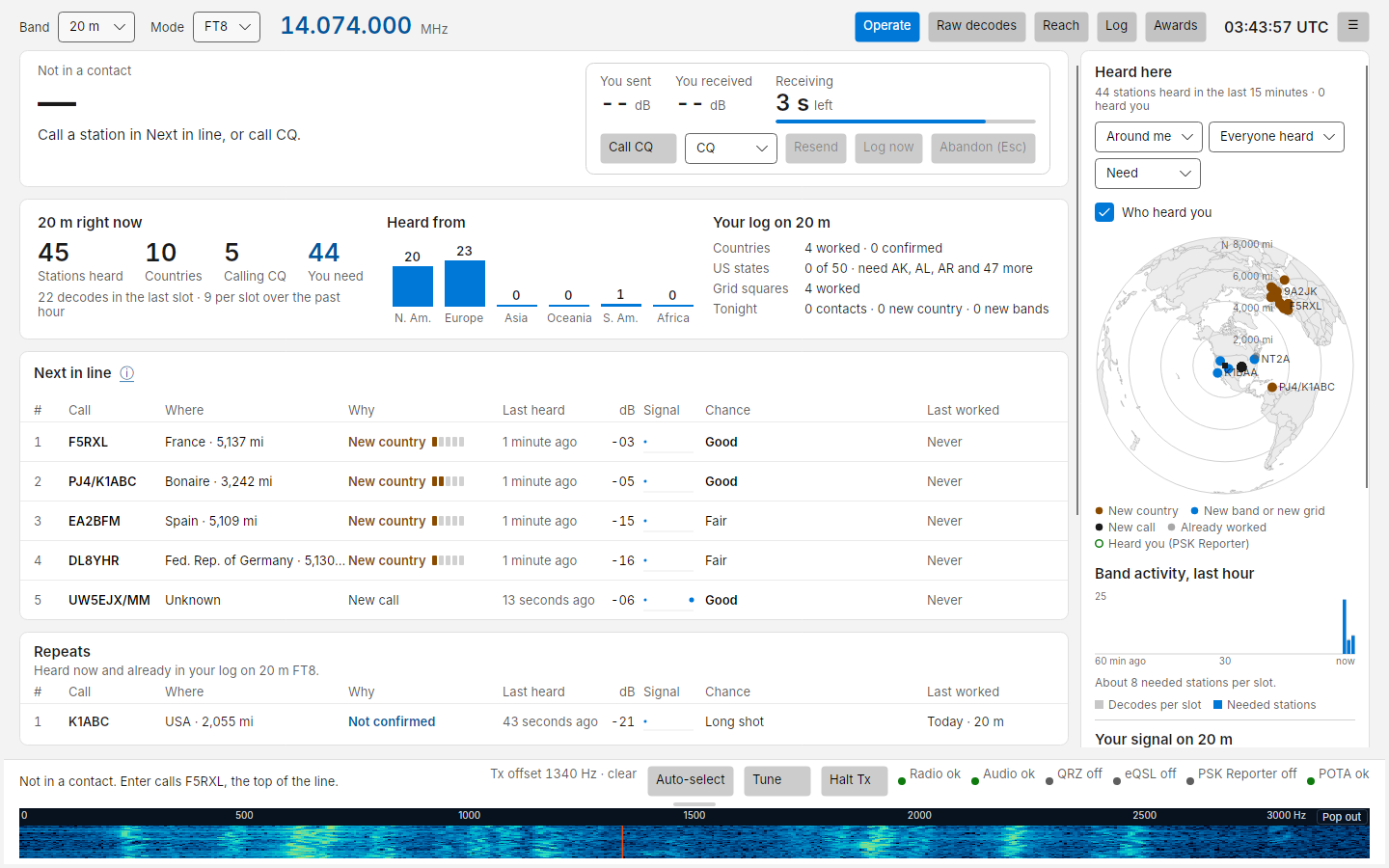
The Operate screen. All screenshots in this manual were taken from the real app replaying recorded band audio (simulation mode); callsigns are from those recordings.
What it does for you
- Tells you who to call next. The Next in line list puts the stations you need first: a new country, then a new band, a new grid, a new call. It reads what you have worked and confirmed from your QRZ logbook. Stations you have already worked are listed under it in Repeats, with when you last worked them, so you can call them again.
- Knows who can hear you. With PSK Reporter it shows, per station, whether that station (or someone near it) has heard your signal, and rates your chance of completing: Good, Fair or Long shot.
- Runs the contact for you. Click Call (or press Enter) and Costas sends the standard exchange, follows the other station's replies, and logs the contact when it completes. A five-box strip shows each step.
- Logs and uploads. Contacts go into a local log and up to your QRZ logbook straight away. ADIF import and export are built in.
- Shows where you are heard. A live map of stations you hear, and a Reach view of who hears you, both centred on your grid.
- Plays well with others. It speaks the WSJT-X UDP protocol, so GridTracker, JTAlert and loggers keep working.
What it never does
- It never transmits on its own. Every transmission starts with something you clicked or pressed.
- It never changes a message silently. If a message cannot be sent exactly as shown, it refuses and tells you why.
- It never shows made-up data. With no radio set up it receives nothing and says so.
Where to start
- Install Costas from the Releases page.
- Go through the six-step first-run setup: your station, radio, audio, a transmit test, a clock check and QRZ.
- Read The Operate screen, then Making contacts.
If something does not work, see Troubleshooting.
What you need
| Item | Notes |
|---|---|
| Windows 10 or 11, 64-bit | Costas is built for Windows first. A Linux preview receives but does not transmit yet; macOS is not offered |
| An HF radio with USB audio (or a sound card interface) | Tested design target: Icom IC-7300 over one USB cable |
| CAT control (optional) | Lets Costas set the frequency and key the radio. Without it, use audio and VOX only |
| An accurate PC clock | Within about one second of UTC. Costas checks it for you |
| A QRZ.com account (optional) | For your worked/confirmed history, uploads and name lookups |
Status
Costas is young software. It has been built and tested against recorded audio, a simulated radio and Hamlib's test radio, but has not yet had long on-air use. Use a dummy load or low power for your first transmissions, and keep an eye on the radio.