The Operate screen
Operate is where you spend your time on the air. Everything you need during a session is on this one screen; you should not need Settings while operating.
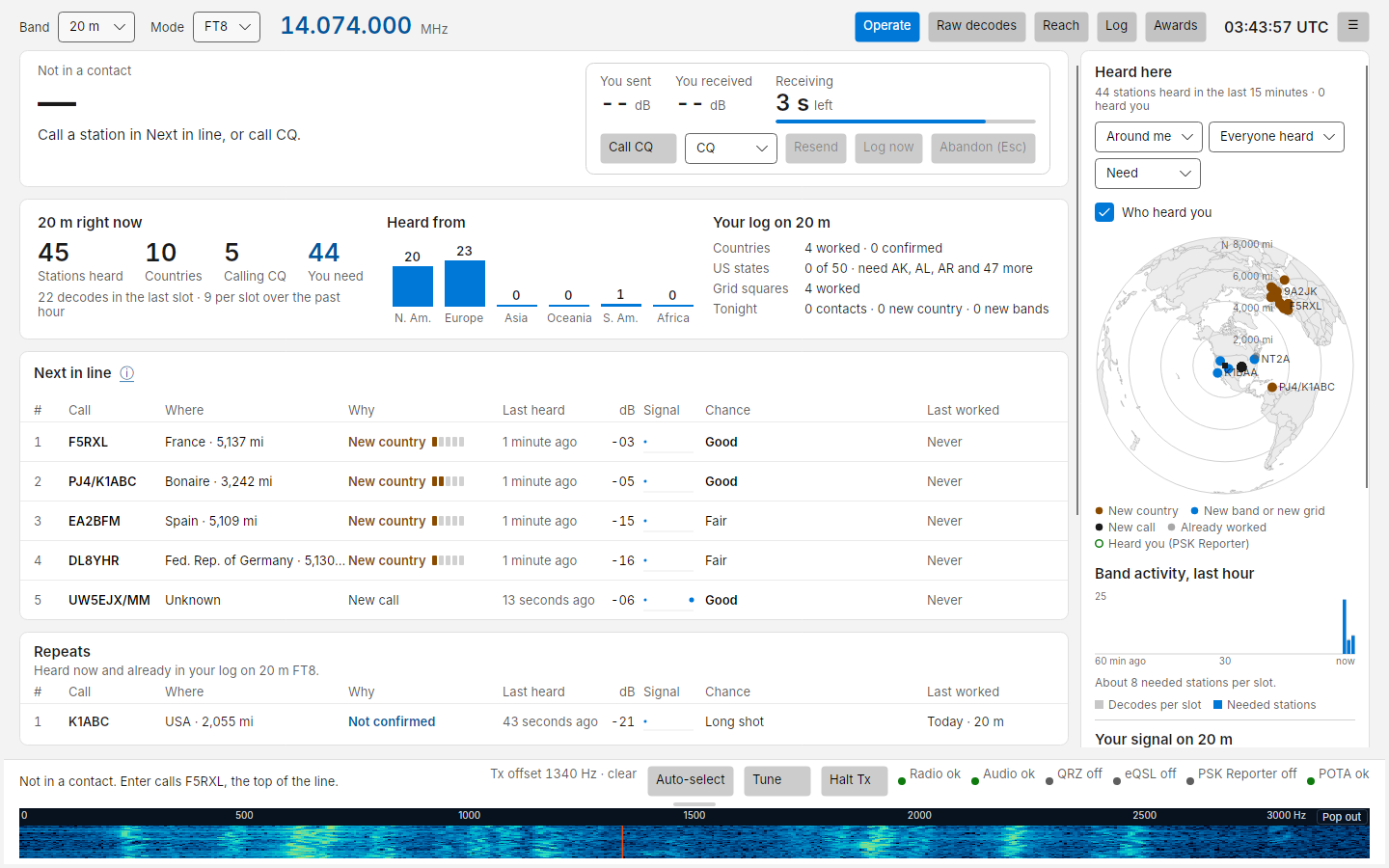
Top bar
| Item | What it does |
|---|---|
| Band | The band you are on, filled in at start-up, and follows the radio when you change band on it (below). Changes band: Costas sets the radio's dial frequency, clears the station list and loads your log totals for the new band. Locked while transmitting |
| Mode | FT8, FT4, PSK31, PSK63 or RTTY. Changes the slot length and dial frequency. Locked while transmitting. For PSK31, PSK63 and RTTY see PSK31, PSK63 and RTTY |
| Frequency | The dial frequency read from the radio, in MHz. Click it to type another frequency or use one you saved (below). Locked while transmitting |
| Operate, Raw decodes, Reach, Log, Awards | The five views. Ctrl+1 to Ctrl+5 |
| Clock | UTC, corrected from internet time when your PC clock is off (the tooltip says by how much). Turns amber with a tooltip when the clock is still off by more than 0.5 s, red above 2 s |
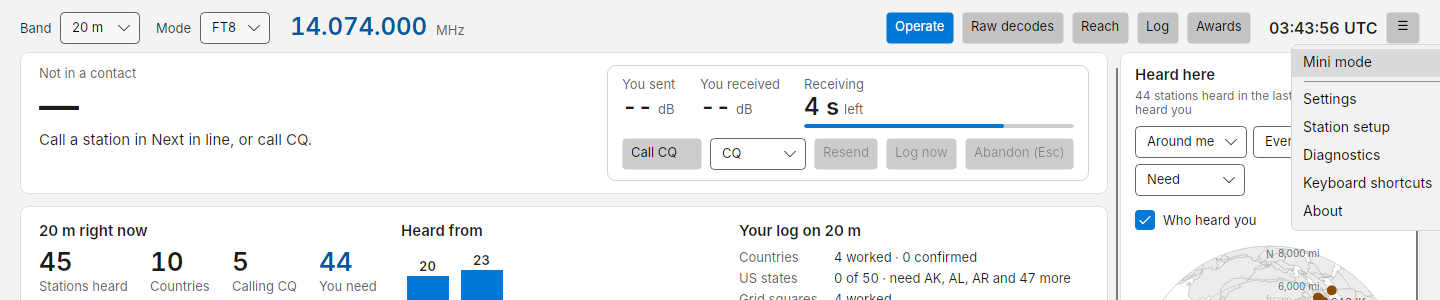
| ☰ | Mini mode, Settings, Station setup, Diagnostics, Keyboard shortcuts, About |
Typing a frequency
DXpeditions often sit off the standard frequency (14.090 instead of 14.074, for example). Click the dial frequency,
type the new one (14.090, 14090 in kHz, or 14.090.000 all work) and press Tune or Enter. Costas moves the
radio there, and to that band if it is a different one. The usual transmit limits still apply: Costas will not tune
outside the amateur bands, or to a band it has no transmit limits for.
Changing band on the radio
You can also change band with the radio's own band button or dial. Costas reads the radio's frequency every second and, when it lands on another band, follows it: the Band menu switches to the new band, the station list is cleared, your per-band transmit level is used, and the new band is remembered for next time. Costas does not move the radio back. Any contact or CQ in progress ends, and a transmission waiting for the next slot is cancelled. Tuning off the standard FT8/FT4 frequency within the same band only changes the frequency shown.
If the radio goes outside the amateur bands (a broadcast station, say), Costas keeps the last band in the menu, says The radio is on 15.000 MHz, outside the amateur bands in the status line, and will not transmit until you tune back.
Save the current frequency adds the frequency the radio is on to Your frequencies in the same menu, so the next time it is one click. Remove takes one off the list. The standard frequencies are not saved there; they are what the Band menu picks.
Which bands are open
Open the Band menu or see Band activity near you in Reach for spots, continents and countries you need on each band. The Band menu also selects the operating band. It also names stations on your Hunt list heard on each band in the last 15 minutes (Hunting: VK9XA).
Two banners can appear under the top bar:
- ON AIR (red) while Costas is transmitting, with the message being sent and a Halt (Esc) button. Next to Halt are the radio's own meters, read over CAT twice a second: PO (the watts the radio's PO meter reads, which can differ from the power setting in the bottom bar), an ALC bar with OK or High, and SWR. A high reading turns yellow (SWR 2 or more, ALC high); hover for advice. A meter your radio does not report is left out, and power out needs Hamlib 4.6 or newer. With an instrument skin the faceplate shows the meters instead. Display only: the meters never stop or change a transmission.
- Radio not connected (amber) when the radio is not set up or not answering, with a Station setup button.
A Hunt list bar appears below them when a station on your Hunt list is heard, with Go to band and Dismiss.
The top slot: band summary
When you are not in a contact, the top card summarises the band.
20 m right now (named after the current band): stations heard in the last 5 minutes, how many countries, how many are calling CQ, and You need (stations that are new to you in some way). The line under it gives decodes in the last slot and the average per slot over the past hour.
Heard from: a bar per continent (N. Am., Europe, Asia, Oceania, S. Am., Africa).
Your log on 20 m: countries worked and confirmed on this band, US states worked (and the first few you still need), grid squares worked, and Tonight: contacts, new countries and new bands this session. A session starts when you open Costas, or after 2 hours with no contact.
When you call or answer a station, this card becomes the contact panel. See Making contacts.
The contact card and this summary stay put at the top. Only the call list below them (Next in line, Repeats and Watching) scrolls, so the countdown, Call CQ and the contact's progress are always in view.
Next in line
The stations you need that you can call right now, best first. At most 12 rows; the rest are counted underneath.
A station calling CQ stays listed for 2 minutes after it was last heard (change this in Settings › Who to call), so one missed decode does not drop it. Doing now then says Calling CQ, missed last slot, and it sorts below stations heard in their latest slot. It leaves the list as soon as it is heard working someone else, and moves to Watching once the time is up.
| Column | Meaning |
|---|---|
| # | Rank |
| Call | Callsign |
| Where | Country (or state for the USA, province for Canada) and distance |
| Why | Why you need them: New country, New band (hover to see which bands you already have that country on), New grid with the grid, such as New grid DO62, or New call. A new country also gets a small rarity meter, five cells from common to very rare, from Club Log's most-wanted list. Hover for its rank. A station activating a park for Parks on the Air gets a second line: New park US-1234 when that park is not in your log yet, Park US-1234 when it is, or POTA when it is calling CQ POTA but nobody has spotted it on this band yet. Hover for the park's name. A station at a new park moves up: it comes right after your first need (new countries, unless you changed the order), and it is listed even if you have already worked that call on this band, because a new park is a new contact for park hunters. You can turn this off in Settings › Who to call |
| Doing now | Calling CQ, 3 slots, Calling CQ DX, Calling you, and fading when their signal is dropping |
| Last heard | How long ago their last decoded transmission ended, counting up every second |
| dB | Their signal at your station |
| Signal | A sparkline of their last 6 slots, gaps where they were not decoded. Hover for the values |
| Chance | Good, Fair or Long shot, with what it is based on beside it: hears you at -22 (they reported you on PSK Reporter), heard in Japan at -17 (someone in their country or area did), or no reports yet. With no reports, a station at -18 dB or better is Fair and a weaker one is a Long shot |
| Last worked | Your most recent contact with that call on any band or mode (2026-10-03 · 40 m), or Never. Hover for the details |
| button | Call, or Answer when they are calling you |
Resizing columns
Drag the edge between two column headings to make a column wider or narrower; a faint line marks each edge and turns blue under the pointer. Doing now takes whatever room is left. Next in line and Repeats share their columns, so resizing one resizes the other and they stay lined up. Watching has its own headings and widths. Double-click an edge to put that column back to its usual width. Costas remembers your widths the next time it starts.
A column can't grow past the point where Doing now would disappear. If the Call buttons are cut off on a small window, narrow a wide column such as Chance or Where to bring them back.
How the order works: stations are grouped by need (new country first), then by chance, then by how well they hear you, then by their signal. The ⓘ beside the title shows the current rules in one sentence; click it to change them (the same options as Settings › Who to call).
The list never reshuffles under your mouse. If it needs to re-rank while you are pointing at it, a List updated pill appears; it applies when you click it or move the pointer away.
The station you are in a contact with is tinted, with a bar down its left edge, the same in Repeats. That tint only ever marks the station you are working.
Selecting a row (click, or Up / Down) outlines it and shows a details card with the station's name (from QRZ lookups), location, grid, bearing and your past contacts with that call. For a station at a park it adds the park, such as New park US-1234 · Example Lake State Park, US-WI:
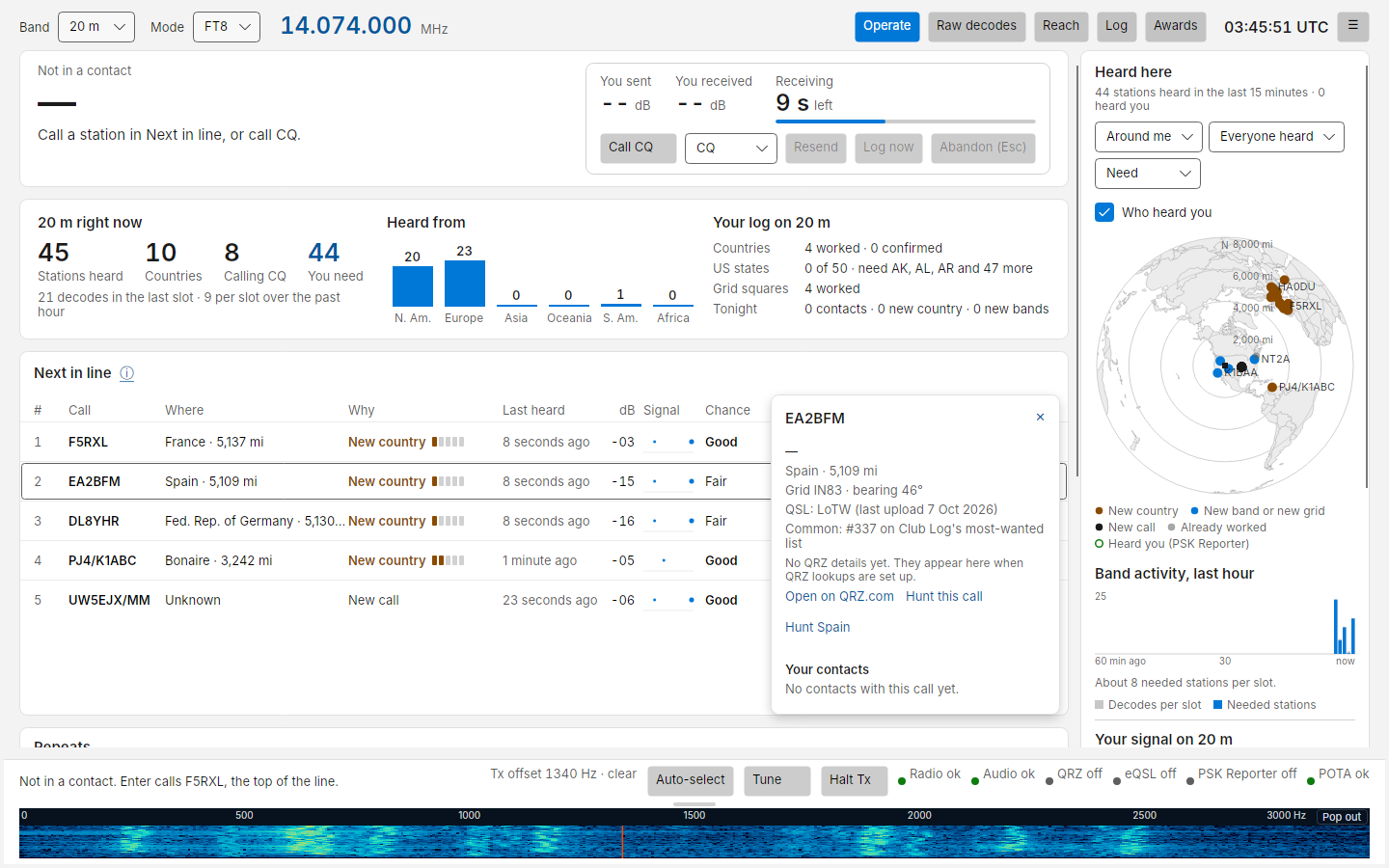
Who else is calling
When other stations are calling the one you selected, the details card adds a Who else is calling section, shaded yellow so it stands out (the same box shows under your contact when you call a busy station, and on the phone's station sheet):
- how many stations called it in its latest answer slot, with each caller's signal at your station and audio offset;
- whether your transmit offset is clear of them, or which caller is sitting on top of it;
- once it has answered a few callers, how it chooses: Answered the strongest caller you heard in 4 of its last 5 contacts.
It is built from your own decodes, so it only knows the callers you can hear, and a caller that is strong for you may be weak for them. The same section shows in the About card while you are calling that station.
To call a station: click its Call button, double-click the row, or select it and press Enter.
Chance without PSK Reporter
If PSK Reporter is off or unreachable, chance is worked out from their signal alone: Good at -10 dB or better, Fair at -18 or better, otherwise Long shot.
Repeats
Directly under Next in line: stations you can hear now that are already in your log on this band and mode. Next in line leaves them out because you do not need them, but you may still want to work them again: a friend, a regular, or someone you owe a better report. At most 8 rows; the rest are counted underneath.
It has the same columns as Next in line, lined up under them, with two differences:
- Why says whether your contact with them on this band and mode is confirmed: Not confirmed or Confirmed. Stations not confirmed are listed first, as working them again is the usual reason to call.
- Doing now says why they cannot be called right now instead, in grey: In a contact with EA5HVK, Went quiet 2 minutes ago (counting up, like Last heard). The Call button still works, so you can call a station that went quiet or is finishing a contact. A station in a contact with someone else is not called: the contact card says In another contact and why (see Making contacts).
Last worked shows when and on which band you last worked them: Today · 20 m, Yesterday · 40 m, 2026-10-03 · 20 m. Hover for the number of contacts, the exact time, the mode and whether it is confirmed.
Stations you can call now come first, then the same order as Next in line. Like Next in line, the list holds still while your pointer is over it and catches up when you move away. When nobody you have worked on this band is on the air, it says so.
Watching
Stations you need that you cannot call yet: they went quiet, or are in a contact with someone else (In a contact with EA5HVK, Finishing a contact with K7RGB). They move into Next in line when that changes. A DXpedition running Fox/Hound is never here: it is always working someone, so it stays in Next in line as DXpedition (Fox/Hound), working Hounds. See Working a DXpedition.
A station calling CQ in a contest (CQ RU, CQ FD, CQ WW, CQ TEST and the like) is listed here as Contest
(CQ RU), needs an exchange. It expects a contest exchange, and Costas only sends the standard one, so it is not
offered as a station to call.
When everyone in Watching is only a new call or a new grid, the list folds to one line, such as 12 needed stations busy: 11 new calls, 1 new grid. Show all opens it and Fold closes it again; Costas remembers your choice until you change it. A new country or a new band is never folded away: as soon as one is in Watching, its rows show.
Stations you have already worked on this band are not in Watching; they are in Repeats.
Call when free
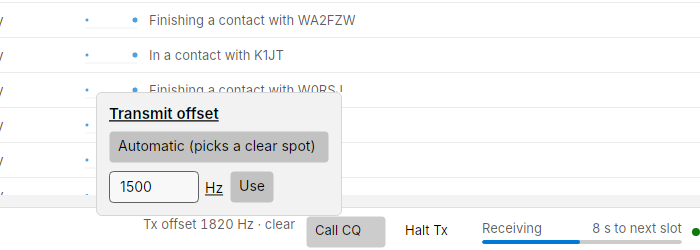
Each Watching row has a Call when free button. Click it on a station you want, and Costas calls that station for you as soon as its current contact is over. The row then reads · calling when free and the button changes to Cancel.
Costas calls the station in your next slot after it is heard signing off with someone else (RR73, RRR or
73), or calling CQ again, the same moment you would tail-end it by hand. There is no extra wait.
Nothing goes out unless you clicked the link, and the usual transmit checks still apply. The mark is dropped when:
- the call starts (it is used once; the contact then runs as if you had clicked Call),
- you click Cancel, press Halt Tx, or change band or mode,
- the station is no longer heard, or
- the Tx watchdog time passes with no click or key from you, so nothing starts after you have walked away.
If you are in a contact of your own when the station comes free, your contact carries on and the station is called once yours ends, if it is still free then. You can mark more than one station; the first one marked that comes free is called first. A marked station is never folded away, even past the first eight rows.
Right column
From top to bottom:
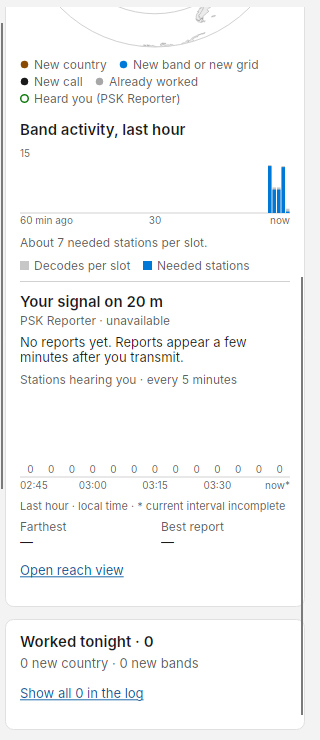
- Heard here: a map of the stations you have decoded in the last 15 minutes. See Maps and who hears you.
- Band activity, last hour: a bar per minute of decodes per slot (grey) and needed stations per slot (blue), with a sentence saying whether the band is busier or quieter than half an hour ago.
- Your signal on 20 m: how many stations hear you, which countries they are in (USA 12 · Canada 3 · Japan 1, most stations first; after six countries it says +4 more, and hovering over the line lists every country with its best report and farthest station), the farthest and the best report, plus a graph of distinct receivers in five-minute intervals over the last hour. Each receiver counts once per interval. Times are local and the faded final bar is still incomplete. History stays available when you switch back to a band or mode during this session; recent stored reports refill it at start-up, and changing your station clears the in-memory counts. Reports may arrive late, and transmitting less or losing the feed can lower counts even when the band has not changed. Open reach view goes to the full view.
- Worked tonight: your latest contacts this session with their QRZ upload state. Show all in the log opens the Log view.
Bottom bar
| Item | What it does |
|---|---|
| Status text | One line: Not in a contact. Enter calls NT2A, the top of the line., Transmitting to F5RXL., Waiting for F5RXL., or a fault in red |
| Tx offset 1650 Hz · clear | Your transmit audio offset. Click to choose Automatic (picks a clear spot), the default, or type a fixed value (200 to 2900 Hz) and press Use |
| Call CQ | Starts calling CQ in the next slot. Becomes Stop CQ while running. Ctrl+Q |
| 50 W | The radio's power setting, shown when the radio reports it over CAT. Click to type a new power and press Use (or Enter), or step it with −5 and +5. Anything outside 1 W to the radio's maximum is refused; a radio with its own minimum (5 W on the FT-710) keeps it and Costas says so. Changes the setting only, never keys the radio, and not while a transmission is on the air. On the FT-710 it needs Hamlib 4.6 or newer, which the Windows installer includes |
| Tune | Starts your radio's own antenna tuner, as its TUNE button would. If the radio has no tuner Costas can start (or its tuner is switched off), Costas sends a steady tone at your transmit offset for up to 10 seconds instead, for an external tuner. Becomes Stop tune for up to 10 seconds; click it to stop. Available only when nothing else is being sent; calling a station or CQ stops the tone |
| Halt Tx | Always available. Drops PTT at once and stops sequencing. Esc does the same |
| Slot progress | Receiving or Transmitting, seconds to the next slot, and a bar. Shown away from Operate, where the contact card has it. Hidden with an instrument skin, whose faceplate shows it |
| Meter warning | Appears after a transmission whose SWR or ALC was high, for example SWR 3.4 · ALC 70%. Hover for advice. The live meters are in the red ON AIR bar at the top |
| Indicators | Radio, Audio, QRZ, eQSL, PSK Reporter, RBN, POTA: a dot and a word each. Click to open Diagnostics |
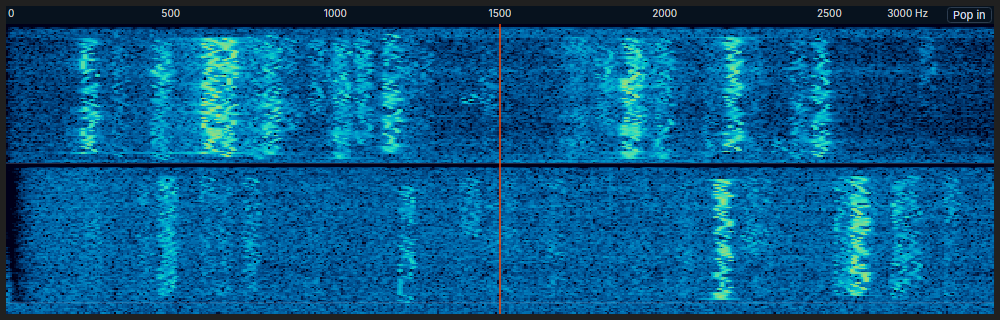
The strip along the bottom is a waterfall of the passband with a line at your transmit offset: click it to move your offset there. Auto-select goes back to Automatic, which picks a clear spot in the passband for you each time.
A bigger waterfall
The waterfall starts as a thin strip showing the last few seconds. To make it bigger:
- Drag the grip (the short bar on the strip's top edge) upwards. The waterfall can grow to half the window; the panels above it get shorter and scroll. Double-click the grip to go back to the thin strip. With the grip focused, the up and down arrow keys resize it and Home makes it thin again.
- Pop it out: click Pop out at the right end of the strip to open the waterfall in its own window. Size it however you like or drag it to a second monitor. While it is open the strip leaves the main window, so the waterfall is never shown twice. Click Pop in, or close the window, to put it back.
A taller waterfall shows more time rather than stretching the same few seconds: about 12 seconds per 100 pixels, up to 80 seconds. Once it is taller than the strip, faint lines mark where each receive slot began. Clicking it picks your transmit offset at any size, and Esc in the waterfall window halts transmit as it does in the main window. Costas remembers the strip's height, and whether the waterfall was popped out and where.
Mini mode
Want to browse, log or check email while you keep an eye on the band? Choose Mini mode from the ☰ menu, or press Ctrl+M. Costas shrinks to a small strip that stays on top of your other windows.
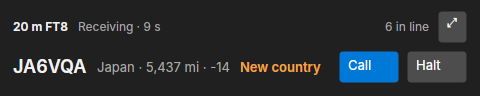
The top row shows the band, the slot countdown and how many stations are in line. When someone calls you it says so in amber instead, for example 1 calling you. The second row shows the station at the top of Next in line and why it's worth calling. Call calls it, exactly as calling it from the full window would.
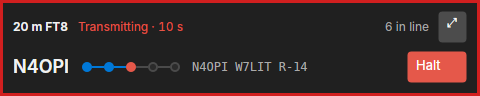
During a contact the strip shows who you're working, a dot for each step of the contact, and the message on the air or the one you're waiting for. The strip is outlined in red while you transmit.
In PSK and RTTY the dots give way to a row of macro keys, and F1 to F12 send them from the strip.
When a station on your Hunt list is heard, the strip adds a line saying where, with ✕ to dismiss it.
Halt is always there, and Esc works in the strip too. Nothing is sent without a click.
To get the full window back, click ⤢ or close the strip. Costas remembers where you put it.