Settings
Open ☰ › Settings. Sections are listed on the left; press Save to keep changes or Cancel to drop them. Radio, audio devices and the transmit test are not here: they are in ☰ › Station setup (see First-run setup).
Station
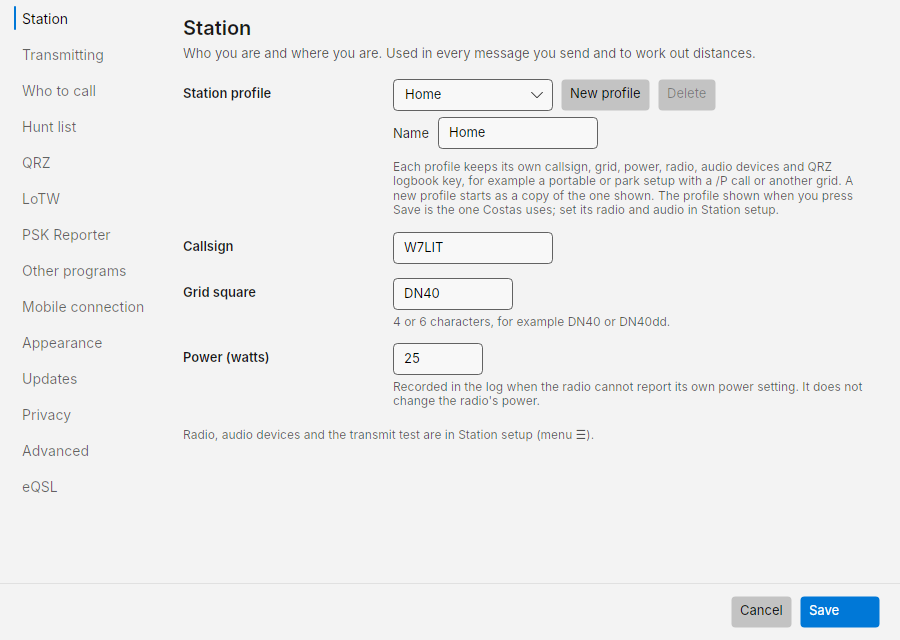
- Station profile: which setup you are operating from. Each profile keeps its own callsign, grid, power, radio,
audio devices and QRZ logbook key, so a portable or park setup with a
/Pcall or another grid is one choice away. New profile adds a copy of the profile shown (same radio and audio) called Portable; rename it in Name. Delete removes the profile shown (the last one cannot be removed). The profile shown when you press Save is the one Costas uses from then on; if it uses another radio or sound card, Costas reconnects to it. Set a profile's radio and audio in Station setup while it is the active one. Worked-before and log totals count the contacts logged under that profile's callsign. - Callsign and Grid square (4 or 6 characters). Used in every message you send and to work out distances.
- Power (watts): recorded in the log when the radio cannot report its own power setting. It does not change the radio's power.
Transmitting
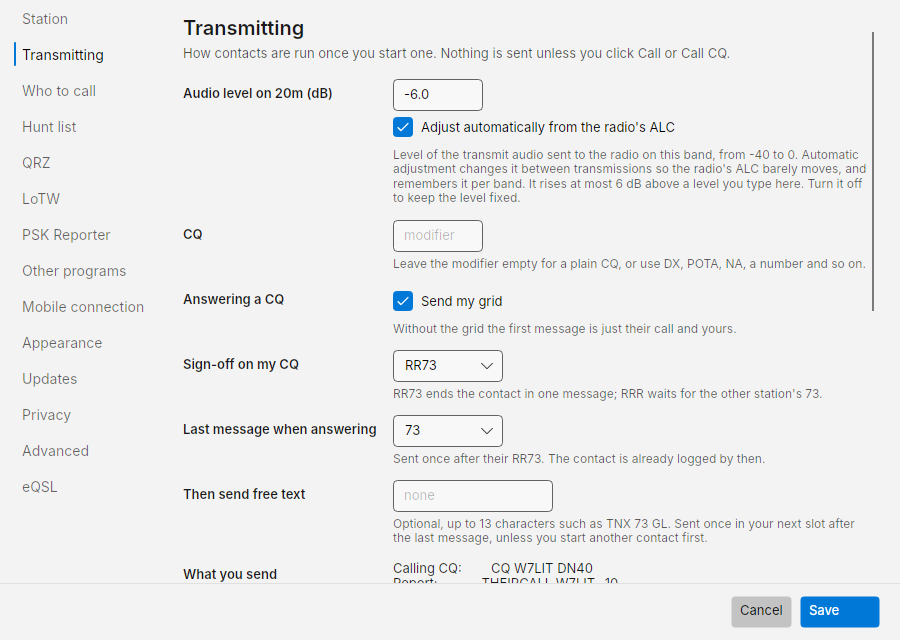
How contacts are run once you start one. Nothing is sent unless you click Call or Call CQ.
| Setting | Default | What it does |
|---|---|---|
| Audio level on 20m (dB) | -6 | Level of the transmit audio sent to the radio on the current band, -40 to 0. Each band remembers its own level |
| Adjust automatically from the radio's ALC | on | After each transmission Costas reads the radio's ALC and nudges the level so ALC barely moves: up 0.5 dB when ALC did not move, down when it moved too much. Only the next transmission changes. It never goes more than 6 dB above, or 20 dB below, a level you type here. Turn it off to keep the level fixed. Needs a radio that reports ALC over CAT, such as the FT-710 or IC-7300 |
| CQ modifier | empty | Empty for a plain CQ W7LIT DN40, or DX, POTA, NA, a number and so on: CQ DX W7LIT DN40. The dropdown beside Call CQ on the Operate screen changes it too |
| Answering a CQ › Send my grid | on | Your first message is THEIRCALL W7LIT DN40. Off: just THEIRCALL W7LIT |
| Sign-off on my CQ | RR73 | When you called CQ: RR73 ends the contact in one message; RRR waits for the other station's 73 |
| Last message when answering | 73 | When you answered: sent once after their RR73. The contact is already logged by then |
| Then send free text | none | Optional, up to 13 characters such as TNX 73 GL. Sent once in your next slot after the last message, unless you start another contact first |
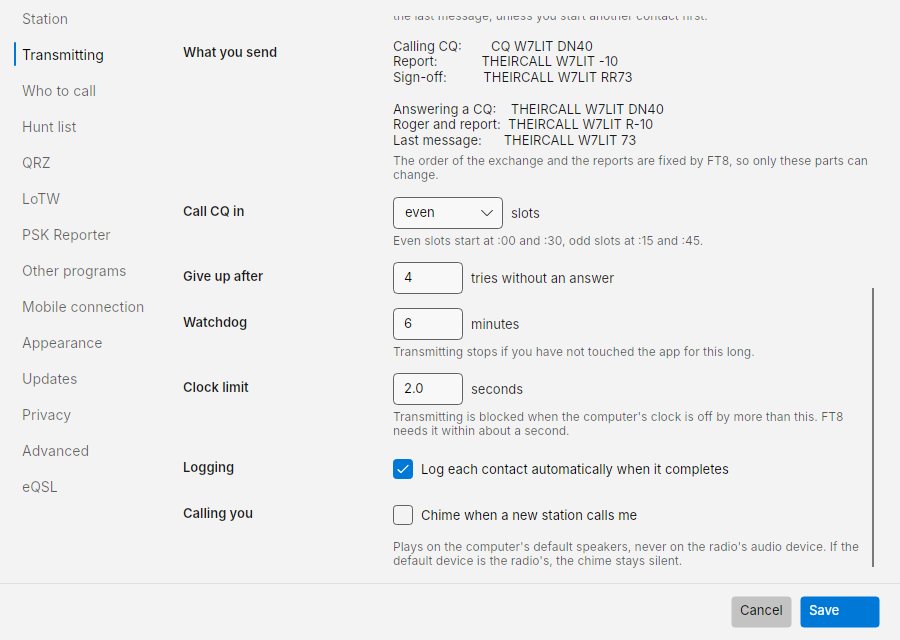
What you send previews every message exactly as it will go out with your current choices. The order of the exchange and the reports are fixed by FT8, so only the parts above can change.
| Setting | Default | What it does |
|---|---|---|
| Call CQ in | even | Even slots start at :00 and :30, odd slots at :15 and :45 |
| Give up after | 4 | Tries without an answer before a contact ends as No reply |
| Watchdog | 6 minutes | Transmitting stops if you have not touched the app for this long. A contact the other station is answering is finished first |
| US data segments only | on | Refuses to transmit outside the parts of each band where US rules allow data modes such as FT8: for example above 14.150 MHz on 20 m, above 7.125 MHz on 40 m or above 3.600 MHz on 80 m, and on 60 m outside the four channels and 5351.5 to 5366.5 kHz. These are the Extra class segments; a General licence has narrower ones at the bottom of some bands. Turn it off if you are licensed in another country; the band limits still apply. Since 13 February 2026 the US 60 m segment allows at most 9.15 W ERP (100 W ERP on the channels): set the radio's power yourself |
| Clock limit | 2.0 seconds | Transmitting is blocked when the PC clock is off by more than this |
| Clock correction | on | When the PC clock is off, Costas times its slots, transmissions and log entries from internet time instead, checked every 15 minutes. The PC clock itself is not changed. Offsets over a minute are not corrected: set the Windows clock and time zone instead |
| Logging | on | Log each contact automatically when it completes |
| Calling you › Chime | off | A chime on the computer's default speakers when a new station calls you. Never on the radio's audio device |
PSK and RTTY
| Setting | Default | What it does |
|---|---|---|
| Your name, Your QTH | empty | Sent by the macros as {MYNAME} and {MYQTH}. A macro that needs one is not sent while it is empty |
| Your radio and antenna | empty | Sent as {MYRIG} and {MYANT} (the F5 macro) |
| Macros | F1 CQ, F2 Answer, F3 Exchange, F4 73, F5 Rig and antenna | The text of each function key. Add a key goes up to F12; Restore the defaults puts the five back. See Macros |
| RTTY power | 50 % | The share of the radio's power used in RTTY. 100 leaves it alone |
How RTTY is read: speed (45.45 baud), shift (170 Hz), Reverse (off) and Unshift on space (on). PSK31 and PSK63 need no settings. See RTTY settings.
Who to call
How the Next in line list on the Operate screen is ordered. The same options open from the ⓘ beside Next in line.
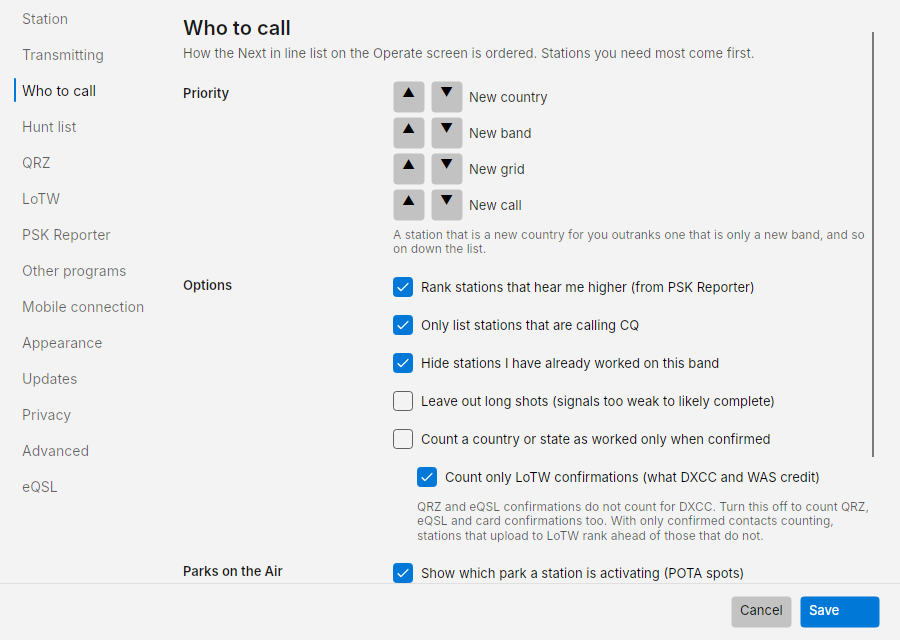
- Priority: the order of need tags. By default a new country outranks a new band, which outranks a new grid, which outranks a new call. Use ▲ ▼ to reorder.
- Rank stations that hear me higher (from PSK Reporter): on.
- Only list stations that are calling CQ: on. Off also lists stations finishing a contact.
- Hide stations I have already worked on this band: on. They are listed in Repeats under Next in line instead.
- Leave out long shots (signals too weak to likely complete): off.
- Count a country or state as worked only when confirmed: off.
- Count only LoTW confirmations (what DXCC and WAS credit): on. Off counts QRZ, eQSL and card confirmations too. With only confirmed contacts counting, stations that upload to LoTW rank ahead of those that do not.
- Keep CQ callers listed: 2 minutes. How long a station calling CQ stays in Next in line after it was last heard. Choices run from Only while heard every slot (the list drops a station the first slot it is missed) to 15 minutes. A station heard working someone else leaves the list straight away whatever this says.
- Parks on the Air: Show which park a station is activating (POTA spots): on. Costas reads the public spot list at pota.app every two minutes while it runs and shows New park or Park with the reference under Why (Operate). When you log a contact with a spotted activator, the park goes into the log (see Log). If pota.app cannot be reached, the POTA indicator says so and Costas tries again less often; nothing else is affected. Off makes no requests.
- Rank stations at a park I have not worked higher: on. A spotted activator at a park that is not in your log comes right after your first need (new countries by default) and ahead of everything else, and it is listed in Next in line even when you have worked that call on this band before. A station calling CQ POTA that nobody has spotted is not moved, since Costas cannot tell which park it is at.
Hunt list
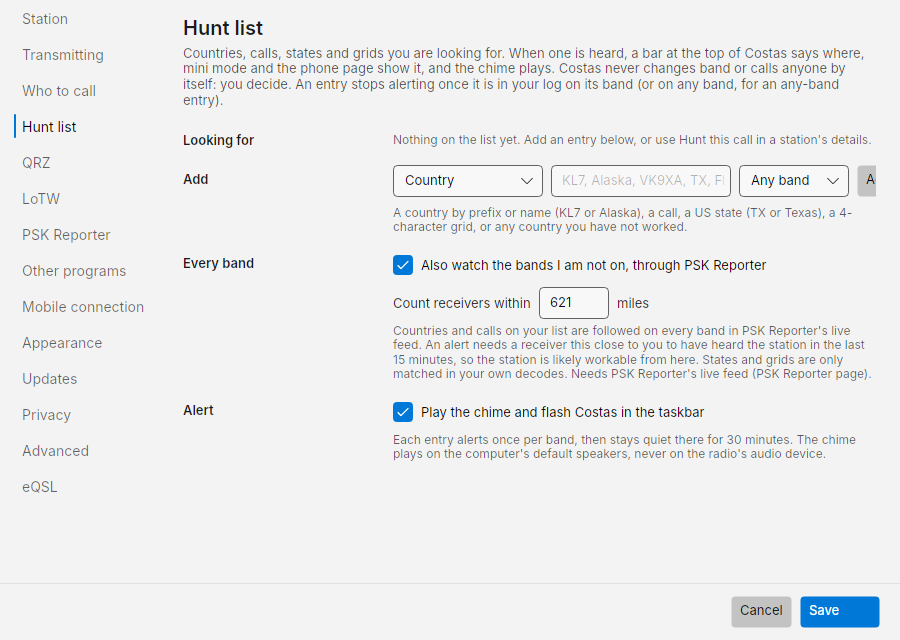
What you are looking for, and how you are told. See Hunt list and alerts.
- Looking for: the entries, each with Remove.
- Add: the kind (Country, Call, US state, Grid, Any new country), what to look for, and a band or Any band.
- Also watch the bands I am not on, through PSK Reporter: on. Count receivers within 620 miles (1,000 km).
- Play the chime and flash Costas in the taskbar: on.
QRZ
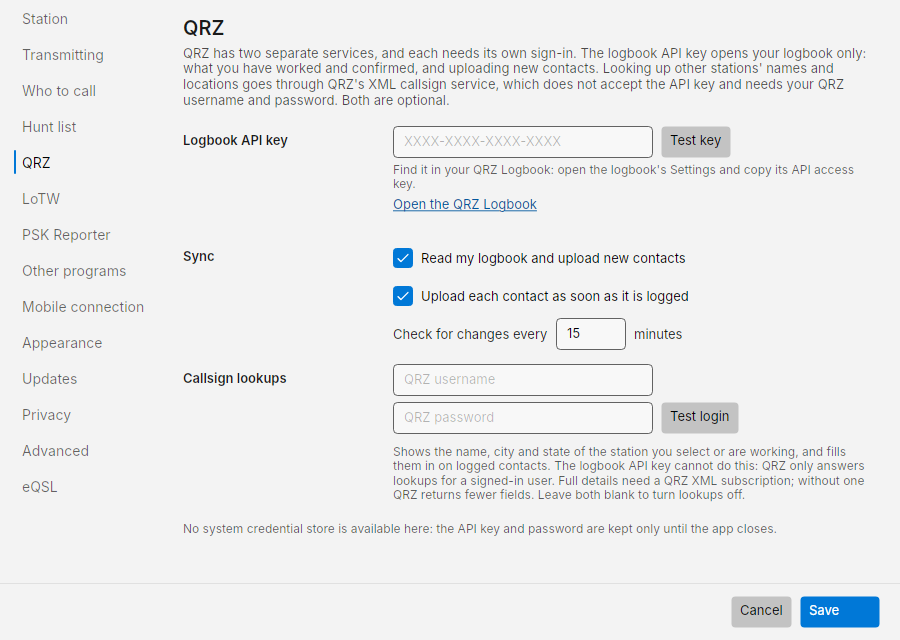
QRZ has two services, each with its own sign-in. Both are optional.
- Logbook API key: opens your logbook only, for what you have worked and confirmed and for uploading contacts. Find it in your QRZ Logbook's Settings. Test key checks it. Open the QRZ Logbook goes to qrz.com.
- Sync: Read my logbook and upload new contacts, Upload each contact as soon as it is logged, and Check for changes every 15 minutes.
- Callsign lookups: your QRZ username and password, for the name, city and state of other stations. Test login checks them. Leave both blank to turn lookups off.
The key and password are kept in Windows Credential Manager.
LoTW
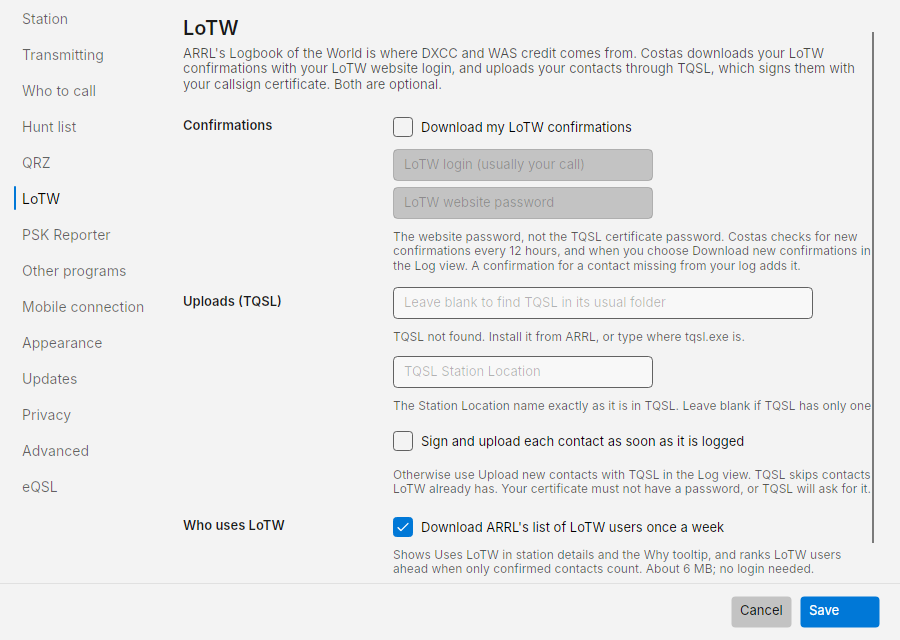
Logbook of the World confirmations, uploads through TQSL, and the list of LoTW users. See LoTW.
- Confirmations: Download my LoTW confirmations, your LoTW login (usually your call) and LoTW website password. This is the website password, not the TQSL certificate password.
- Uploads (TQSL): where
tqsl.exeis (leave blank to find it in its usual folder), the TQSL Station Location to sign with (blank if TQSL has only one), and Sign and upload each contact as soon as it is logged (off). - Who uses LoTW: Download ARRL's list of LoTW users once a week (on, about 6 MB, no login).
The password is kept in Windows Credential Manager.
PSK Reporter
The page is called PSK Reporter and RBN in Settings.
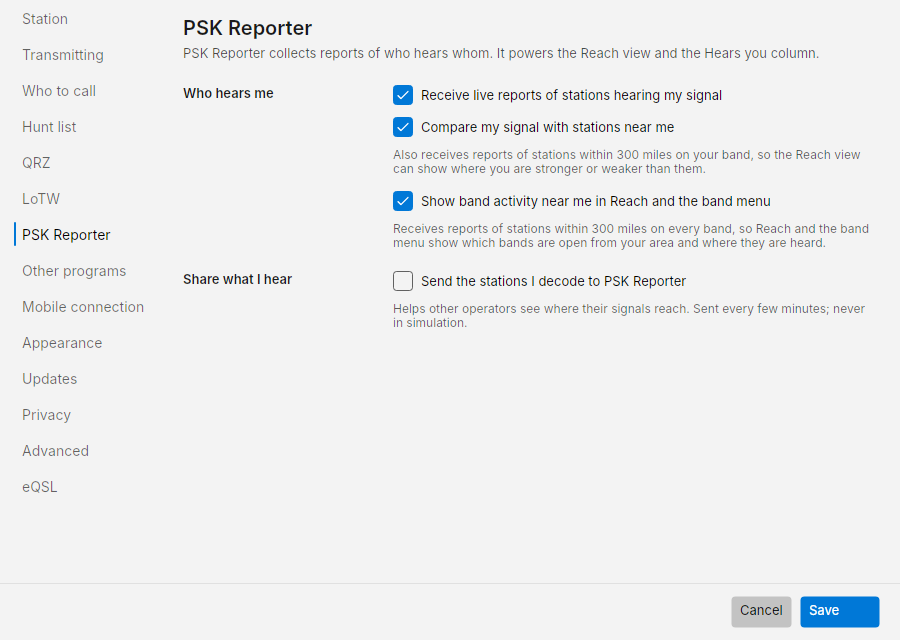
- Who hears me › Receive live reports of stations hearing my signal: on. Powers the Reach view and Chance.
- Who hears me › Compare my signal with stations near me: on. Also receives reports of other stations within 300 miles on your band, for Compared with stations near you in the Reach view. Nothing about them is saved.
- Who hears me › Show band activity near me in Reach and the band menu: on. Receives reports of stations within 300 miles on every band, using the current grid square in Station, so Reach and the band menu show which bands are open from your area. Changing the grid switches the area. Nothing about these reports is saved.
- Share what I hear › Send the stations I decode to PSK Reporter: off. Helps other operators see where their signals reach. Sent every few minutes, never in simulation.
- Reverse Beacon Network › Also show skimmers that spot my signal: on. Costas logs in to the Reverse Beacon Network feeds with your callsign and keeps only spots of you, in FT8, FT4 and RTTY (RBN covers RTTY much better than PSK Reporter). They join PSK Reporter's reports in Reach, the globe, the countries line and Chance. A skimmer heard by both networks counts once. Nothing you decode is sent to RBN.
Other programs
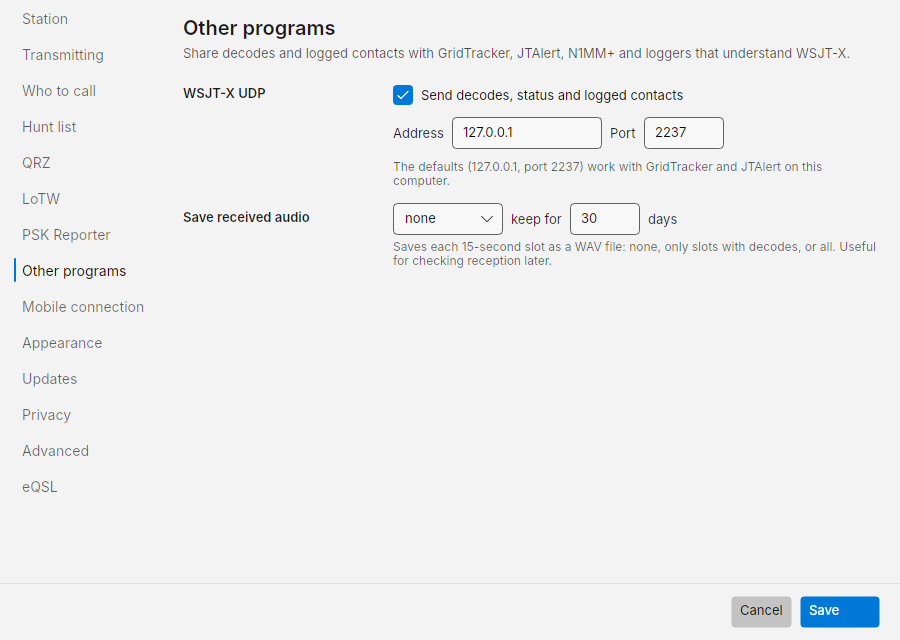
- WSJT-X UDP › Send decodes, status and logged contacts: on, to
127.0.0.1port2237. Works with GridTracker and JTAlert on the same computer. - Save received audio: none, only slots with decodes, or all, as WAV files, kept for 30 days by default.
Mobile connection
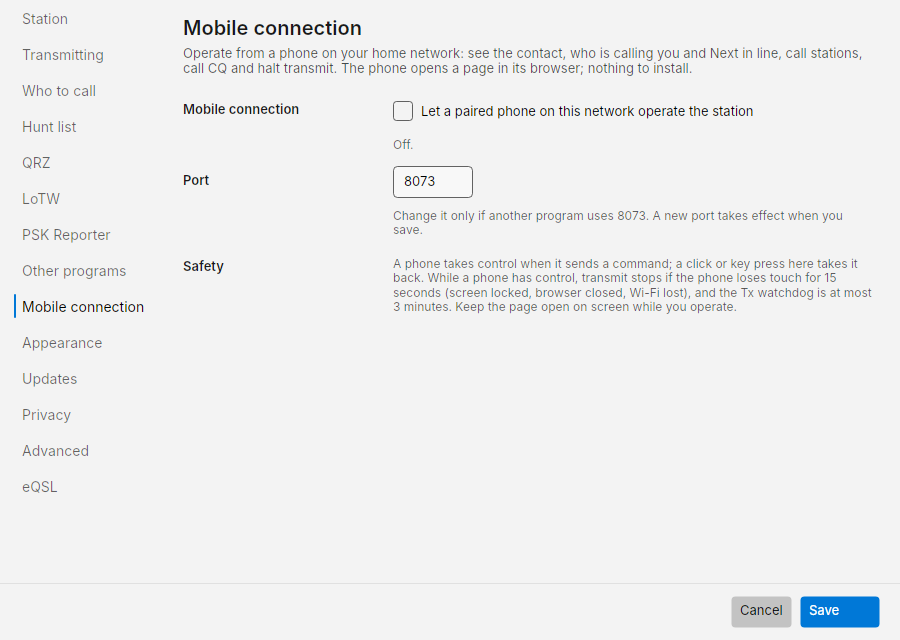
- Let a phone on this network operate the station: off by default. Takes effect at once and shows the address to open on the phone. There is no code: any phone on your home network can connect.
- Port:
8073, applied when you save.
Appearance
- Skin: Classic (the original appearance and system accent), Ocean (cool blues), Forest (soft greens), or Amber (warm sand and copper). Four instrument skins also change the faceplate, typography, panel shapes and controls: Modern Radio has a recessed digital display and a dial button; Classic Transceiver has a gray and black faceplate, lime green seven-segment LCD digits and a black tuning dial; Vintage Receiver has warm dial lighting, brass trim, rounded controls and a sweeping slot needle; SDR Console has square modules, monospace readouts and a segmented slot strip. Their meters show progress through the current FT8 or FT4 slot; with one of these skins the faceplate is the only slot countdown, so the contact card and bottom bar leave theirs out. The display also carries the radio's power out, ALC and SWR meters (in place of the bottom bar's) once the radio has reported them. Click the large frequency display or DIAL button to open the same frequency editor used by Classic. Light and dark swatches preview your choice. Press Save to apply it to all desktop windows; it is remembered the next time you start Costas. Transmit and warning colors stay the same.
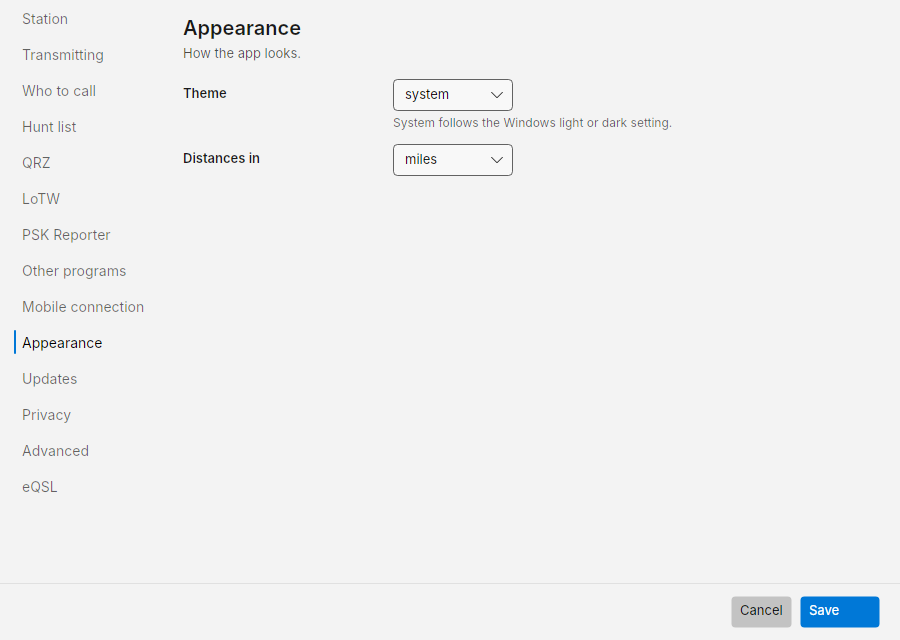
- Theme: system (follows your device's light or dark setting), light or dark. Each skin supports both.
- Distances in: miles or kilometres.
Updates
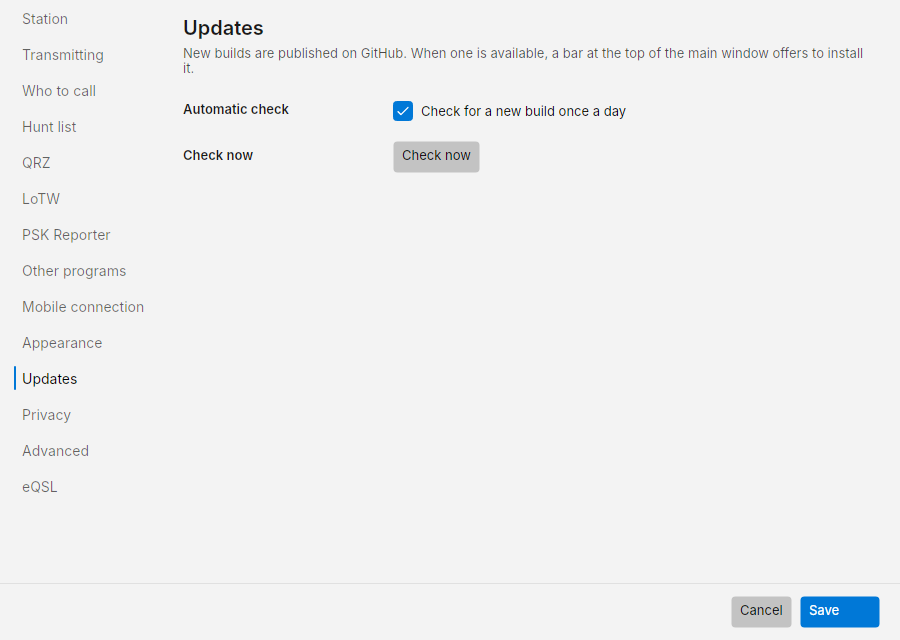
Check for a new build once a day (on) and Check now. See Install › Updates.
Privacy
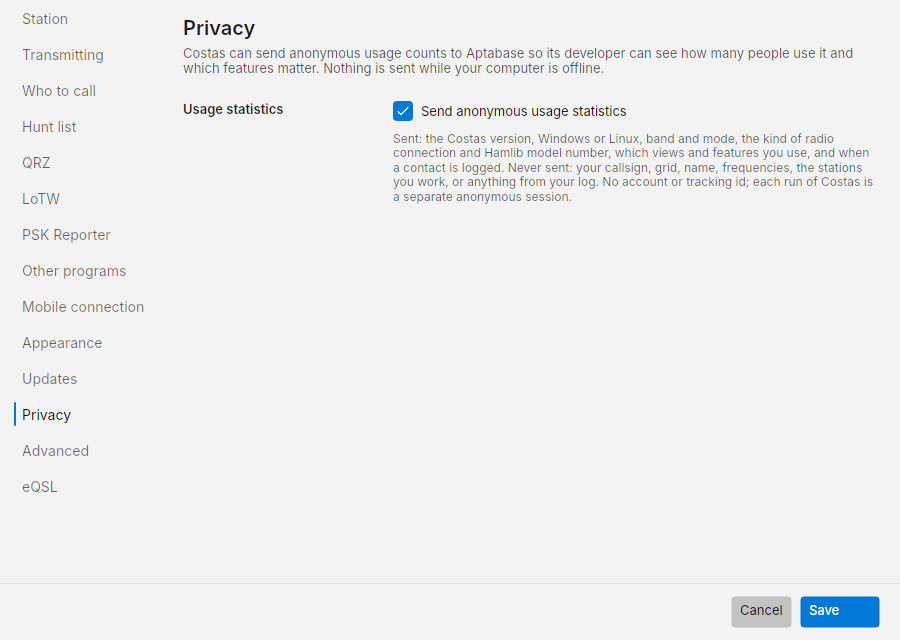
Send anonymous usage statistics (on). Costas sends a few anonymous counts to Aptabase, an open-source analytics service built for privacy, so its developer can see how many people use it and which features matter. Untick the box to stop sending them.
What is sent:
- the Costas version and whether it is running on Windows or Linux;
- the band and mode you are on, and whether your radio is connected through Hamlib, VOX or not at all, with the Hamlib model number (the same number for every owner of that radio);
- which optional features are switched on (QRZ logbook, LoTW, eQSL, PSK Reporter, POTA spots, other programs, the phone remote) and how many entries your Hunt list has;
- which views and windows you open, and when you call CQ, call or answer a station, use Tune or a Hunt list alert, and log a contact (band and mode only).
What is never sent: your callsign, grid, name, frequencies, serial ports or network addresses, the stations you hear or work, or anything from your log. There is no account and no tracking id; each run of Costas is a separate anonymous session.
Nothing is sent while your computer is offline. Counts wait in memory (never on disk) and go out when the network is back; anything still waiting when you close Costas is dropped. Statistics are never sent in simulation, and builds you make yourself from the source send nothing at all.
Advanced
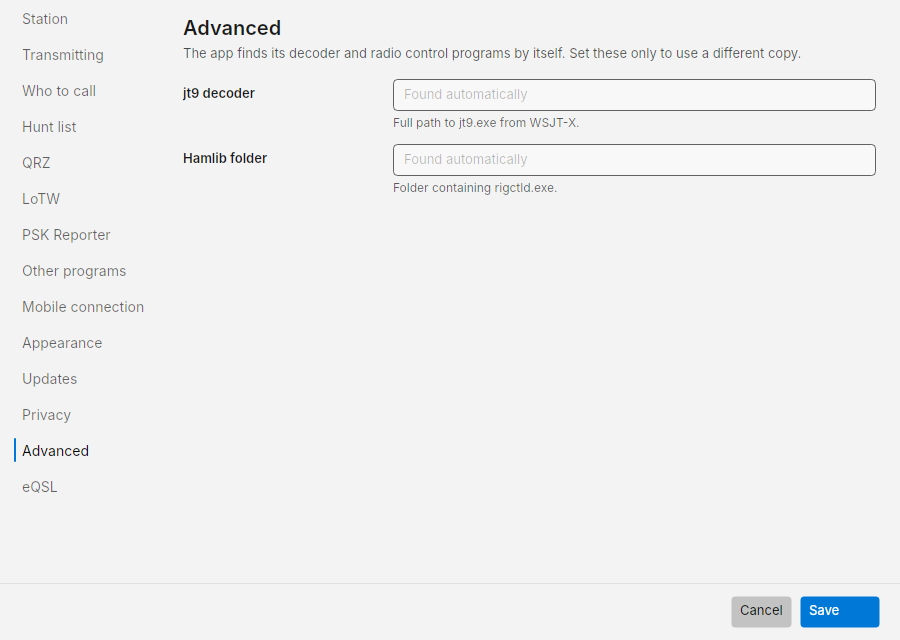
Costas finds its decoder and radio control programs by itself. Set jt9 decoder (full path to jt9.exe) or
Hamlib folder (the folder containing rigctld.exe, or the Hamlib folder with it in bin) only to use a different copy, for example a newer Hamlib
for a radio the bundled one does not support.
Developer mode
Hidden by default. In ☰ › About, click the product name seven times. Settings then has a Developer section (replay the sample recordings instead of the sound card, optionally with a simulated station that answers your calls), and Station setup lists Hamlib's test radio, Hamlib Dummy, which never plays transmit audio. This is for testing Costas, not for operating.
eQSL
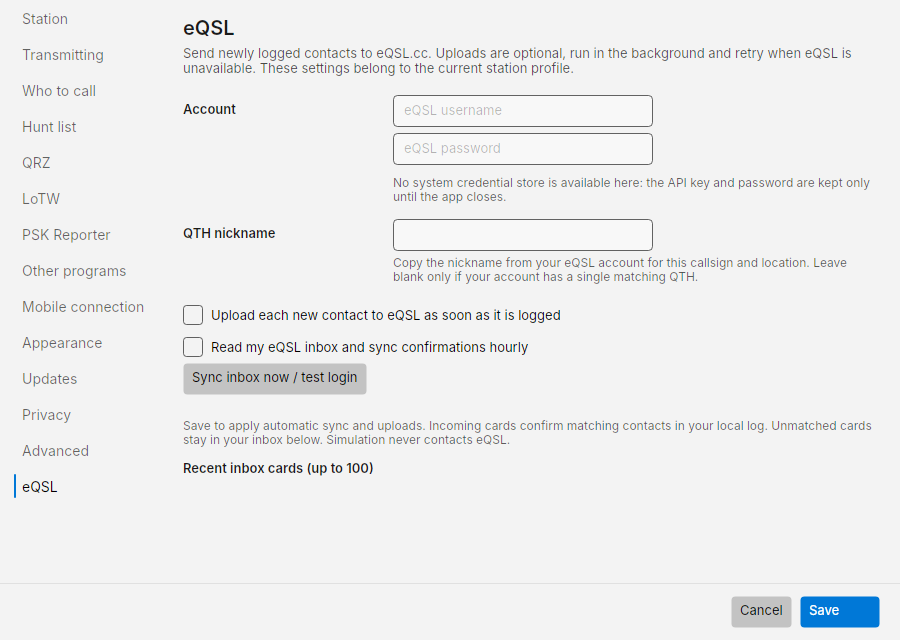
In Settings › eQSL, enter your eQSL.cc username and password, and copy the QTH nickname for the current callsign and location from your eQSL account. Credentials stay in the system credential store when available. Each station profile has its own account settings.
Enable Upload each new contact for automatic uploads. Contacts queue locally and retry after failures, even after restarting Costas. The Log view shows eQSL delivery independently of QRZ.
Enable Read my eQSL inbox to fetch incoming cards hourly. Sync inbox now / test login reads the inbox with the values entered on this page, even before saving them. A sync stores incoming cards and confirms a local contact when its callsign, band and mode match one contact within 15 minutes (the other station logs its own start time, often a minute or two from yours). With several contacts in that time, only one in the same minute is confirmed. Unmatched cards remain visible in the recent inbox list; they do not create contacts automatically. FT4 and MFSK/FT4 match as the same mode.
Both automatic features are off by default. Save to apply. Simulation never contacts eQSL.