Log, QRZ and ADIF
Press Log in the top bar or Ctrl+4.
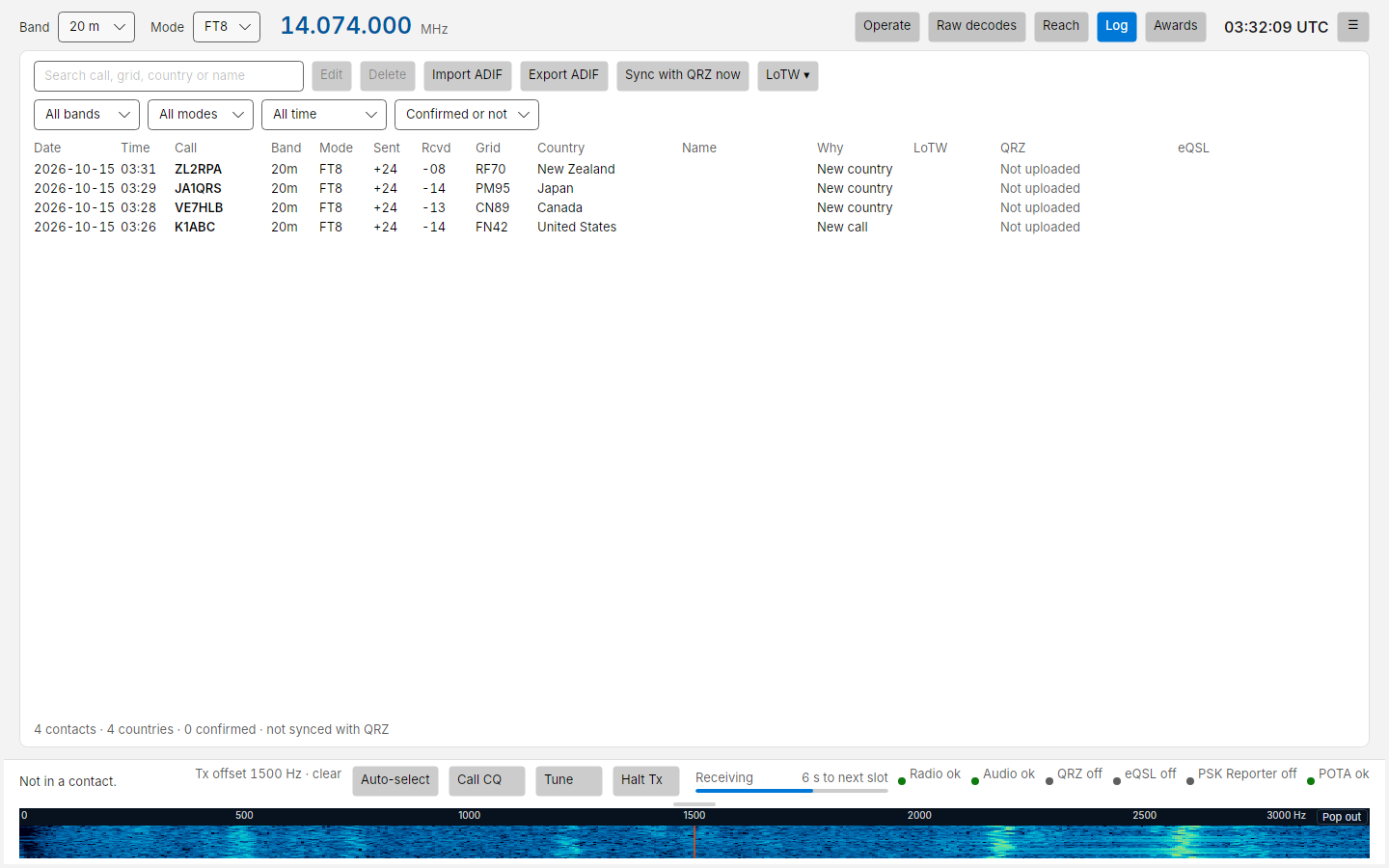
Every contact, newest first: date, time (UTC), call, band, mode, report sent and received, grid, country, name, the need tag it had when you worked it, and its LoTW, QRZ and eQSL status. The status line at the bottom counts the contacts shown, their countries and how many are confirmed, and says when the log was last synced with QRZ.
Filters
The row under the buttons narrows the list. The filters combine with each other and with the search box:
| Filter | Choices |
|---|---|
| Band | All bands, or any band you have a contact on |
| Mode | All digital (the default: everything but phone and CW), All modes, FT8, FT4, PSK (PSK31 and PSK63) or RTTY |
| Date | All time, Today (UTC), Last 7 days, Last 30 days, This year. Days are UTC days, as the log shows them |
| Confirmed | Confirmed or not, Confirmed (by QRZ, the ADIF you imported, or LoTW), Not confirmed |
All digital is the starting point, so it does not count as a filter. While another filter is set, the status line says Showing 120 of 3,400 contacts and Clear filters puts them all back. The search text is kept. The list shows the newest 5,000 matching contacts; the totals always count all of them.
| Button | What it does |
|---|---|
| Search box | Finds contacts by call, grid, country or name |
| Edit | Opens the selected contact to correct it (call, grid, reports, name, power, comment). Your corrections stay: a later QRZ sync adds confirmations but does not change what you edited. The change is not sent to QRZ; correct it there too if you want both to match |
| Delete | Removes the selected contact from the local log. Press it twice to confirm. It is not deleted from QRZ, but QRZ syncs and LoTW downloads will not bring it back. Importing an ADIF file that holds it does |
| Import ADIF | Reads an .adi file (from WSJT-X, another logger, or a QRZ export). Duplicates are merged, not added twice; Costas reports how many were imported, merged and skipped |
| Export ADIF | Writes the whole log to an .adi file |
| Sync with QRZ now | Reads your QRZ logbook and uploads anything waiting |
What Costas logs
Call, date and time on and off, band, frequency, mode (FT8 or FT4), reports sent and received, their grid, your grid
and callsign, your power, the name, state and country from QRZ lookups when available, and a comment in the form
other FT8 loggers use (FT8 Sent: -01 Rcvd: -13). Power comes from the radio when
it can report its power setting; otherwise from Settings › Station › Power (watts).
When the station was spotted on pota.app at a park on the band you worked it on, the contact also gets the ADIF
fields SIG = POTA and SIG_INFO = the park reference (such as US-1234). These go to QRZ, into ADIF exports and
to other programs over UDP. A station calling CQ POTA that nobody has spotted is logged without a park, since Costas
does not know which one it is. Parks already in your log (from SIG/SIG_INFO, or POTA_REF in imported files)
are what decide New park or Park on the Operate screen, and imported park fields are kept on export.
QRZ logbook
With a QRZ logbook API key (set in setup or Settings › QRZ):
- Sync down. Costas reads your whole QRZ logbook, including confirmations, and keeps checking for changes (every 15 minutes by default). This is what makes New country, New band and the log totals right. Without it, Costas only knows the contacts made in Costas or imported from ADIF, and every other station shows as a new call.
- Upload. Each contact is uploaded as soon as it is logged. Its status shows in the Log and in Worked tonight: Uploaded to QRZ, Waiting to upload · retrying, or Upload failed · Retry. If QRZ is unreachable, uploads wait in a queue and retry with back-off; nothing is lost.
- Confirmed only. If you chase confirmations rather than contacts, tick Settings › Who to call › Count a country or state as worked only when confirmed. By default only LoTW confirmations count, because QRZ and eQSL confirmations do not count for DXCC (see below).
LoTW
ARRL's Logbook of the World is where DXCC and WAS credit comes from. Set it up in Settings › LoTW.
- Confirmations. With your LoTW website login, Costas downloads new LoTW confirmations every 12 hours, and when you choose LoTW ▾ › Download new confirmations in the Log view. Each one marks the matching contact (same call, band and mode within 30 minutes) as confirmed on LoTW. A confirmation for a contact that is not in your log adds it.
- Uploads. Costas signs and uploads contacts through TQSL, ARRL's signing program, which holds your callsign certificate. Choose LoTW ▾ › Upload new contacts with TQSL, or turn on uploading each contact as it is logged. TQSL skips contacts LoTW already has. Install TQSL first and set up your Station Location in it. With uploading as each contact is logged, a contact logged while TQSL is still busy is sent straight after, and an upload that failed (LoTW unreachable, for example) is tried again after 2, 4, 8 and so on up to 60 minutes.
- Who uses LoTW. Costas downloads ARRL's list of LoTW users once a week. Station details then say LoTW (last upload 1 Oct 2026), the Why tooltip says Uses LoTW, and with only confirmed contacts counting, stations that upload to LoTW rank ahead of those that do not.
The Log view's LoTW column says Confirmed or Uploaded. Station details say whether each past contact was Confirmed on LoTW or Confirmed (QRZ, eQSL or card). Nothing is downloaded into the log or uploaded in simulation.
Other loggers
Costas sends the WSJT-X UDP messages (decodes, status, logged contact as ADIF) to 127.0.0.1 port 2237 by default
(in PSK and RTTY only the status, naming the mode, and logged contacts),
so GridTracker, JTAlert, N1MM+ and loggers that understand WSJT-X see your activity. Change the address in
Settings › Other programs.
They can also drive Costas back, the same way they drive WSJT-X:
- Calling from another program. Double-clicking a CQ in GridTracker (or a station calling you) calls it in Costas, exactly as double-clicking it in Raw decodes would. Costas acts only if it decoded that same message itself, and never calls anyone on its own.
- Halt. A Halt Tx from the other program stops transmitting at once.
- Highlights. Colours JTAlert or GridTracker give a callsign show in Raw decodes.
With the address left at 127.0.0.1, only programs on this computer can do this.
Decode journal and saved audio
Every decode and transmission is written to a monthly text file in the data folder's journal folder. Costas reads
it back to tell you when you hear each country. You can also
keep the received audio of each slot as WAV files (Settings › Other programs › Save received audio: none, only
slots with decodes, or all, kept for a number of days).